08 April, 2020

.Net Framework 4.8: Azure SQL Database connection from App Service using a managed identity


Azure SQL Database connection from App Service using a managed identity


Azure App Service(Web App) provides a highly scalable, self-patching web hosting accommodation in azure.  It offers a managed identity for your app, which is a turn-key solution for securing access to the Azure SQL database and other azure services.  Managed identities in-app provides a mechanism to your app more secure by eliminating secrets from your app, such as credentials in the connection strings.  

Here we'll integrate managed identity to the sample web app and also with zero lines of code. we'll utilize full configuration capability to make a connection to the Azure SQL database.

Prerequisites:

Following resource are required to run/complete this demo

  • Azure subscription
    • Create an Azure web app
    • Create a key vault resource
  • Visual studio 2019 ready to use on your machine
  • .Net Framework 4.8 installed

You will learn followings:

  • Enable managed identities
  • Grant SQL Database access to the managed identity
  • Connect to SQL Database from Visual Studio using Azure AD authentication

Azure Database Setup

Let's create a database for you according to give screenshot
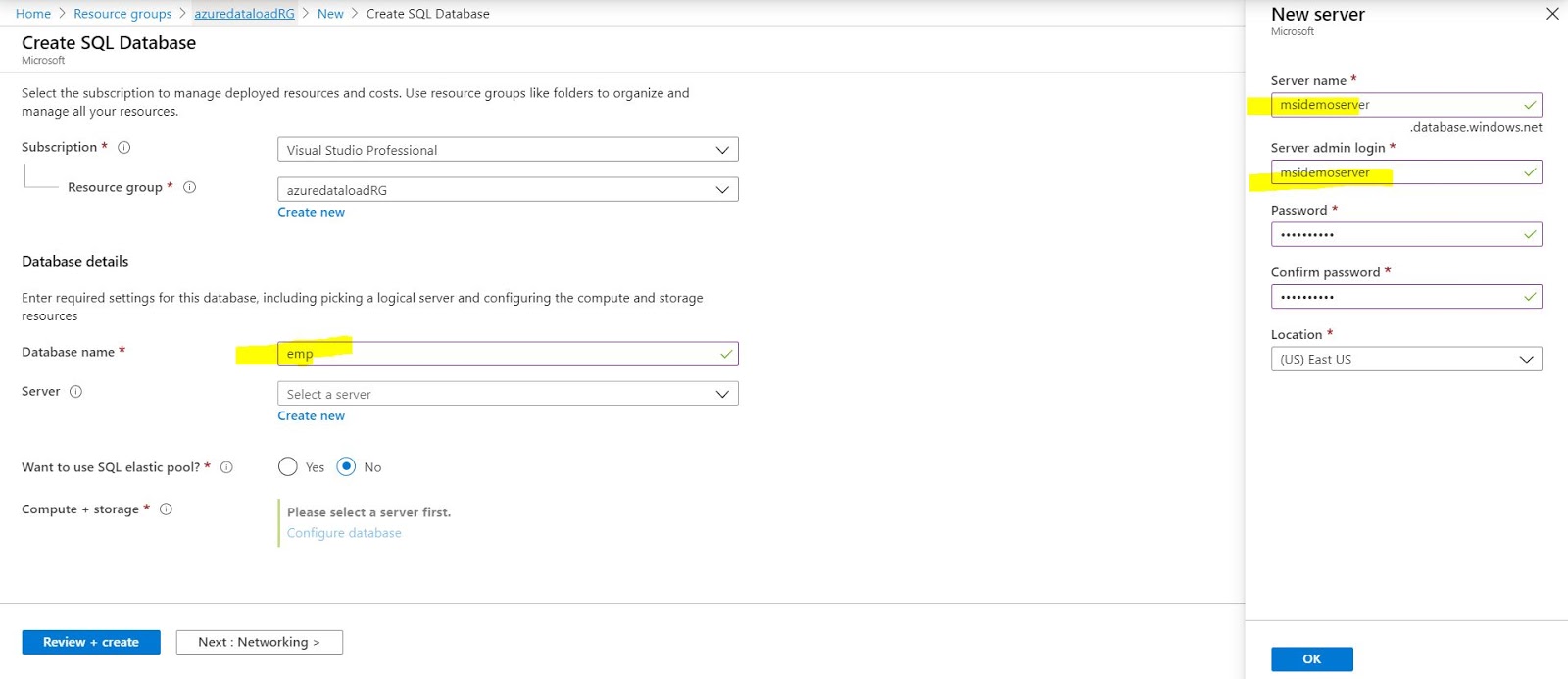
azure-sql-database-create

Setup Azure Active Directory

Open you newly create azure SQL server and add your email id(that you have used to login to azure portal)

aad-admin-setup

Open Azure Database(for example: emp) and click on Query Editor(Preview) on and log-in with the option “Active Directory authentication” and run following command

login-as-aad


Grant Access to your Web App to Azure SQL Database

This step is not required for the local running the app in visual studio

CREATE USER [<identity-name>] FROM EXTERNAL PROVIDER;
ALTER ROLE db_datareader ADD MEMBER [<identity-name>];
ALTER ROLE db_datawriter ADD MEMBER [<identity-name>];
ALTER ROLE db_ddladmin ADD MEMBER [<identity-name>];
GO

[<identity-name>] : Your web app Identity that will be required only when your code hosted over underlying web app to make the connection between an azure web app and your emp database.
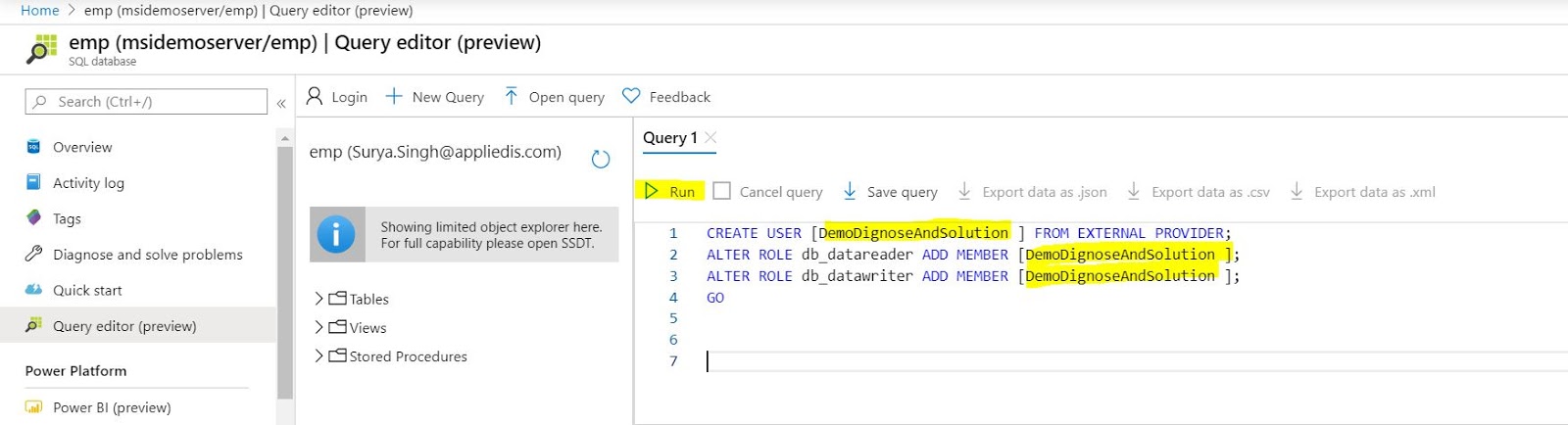
execute-query


Set up Local Develop Environment(Visual Studio)

You must be login into the visual studio with same principle/user name that you have used to access https://portal.azure.com/

  • To enable development and debugging in Visual Studio, add your Azure AD user in Visual Studio by selecting File > Account Settings from the menu, and click Add an account.
  • Add  latest Nuget Package “Microsoft.Azure.Services.AppAuthentication” to your underlying project
  • Open your Web.config,  file and the following configurations

  <configSections>
    <section name="SqlAuthenticationProviders" type="System.Data.SqlClient.SqlAuthenticationProviderConfigurationSection, System.Data, Version=4.0.0.0, Culture=neutral, PublicKeyToken=b77a5c561934e089" />
  </configSections>
  <SqlAuthenticationProviders>
    <providers>
      <add name="Active Directory Interactive" type="Microsoft.Azure.Services.AppAuthentication.SqlAppAuthenticationProvider, Microsoft.Azure.Services.AppAuthentication" />
    </providers>
  </SqlAuthenticationProviders>
  <connectionStrings>
    <add name="BasicDatabaseConnectionString" connectionString="server=msidemoserver.database.windows.net;database=emp;UID=ManagedIdentity;Authentication=Active Directory Interactive" />
  </connectionStrings>

Note: update the connection string  with your Azure SQL server name and database

Sample web.config file: 
web-config-file-changes

You're now ready to develop and debug your app with the SQL Database as the back end, using Azure AD authentication.


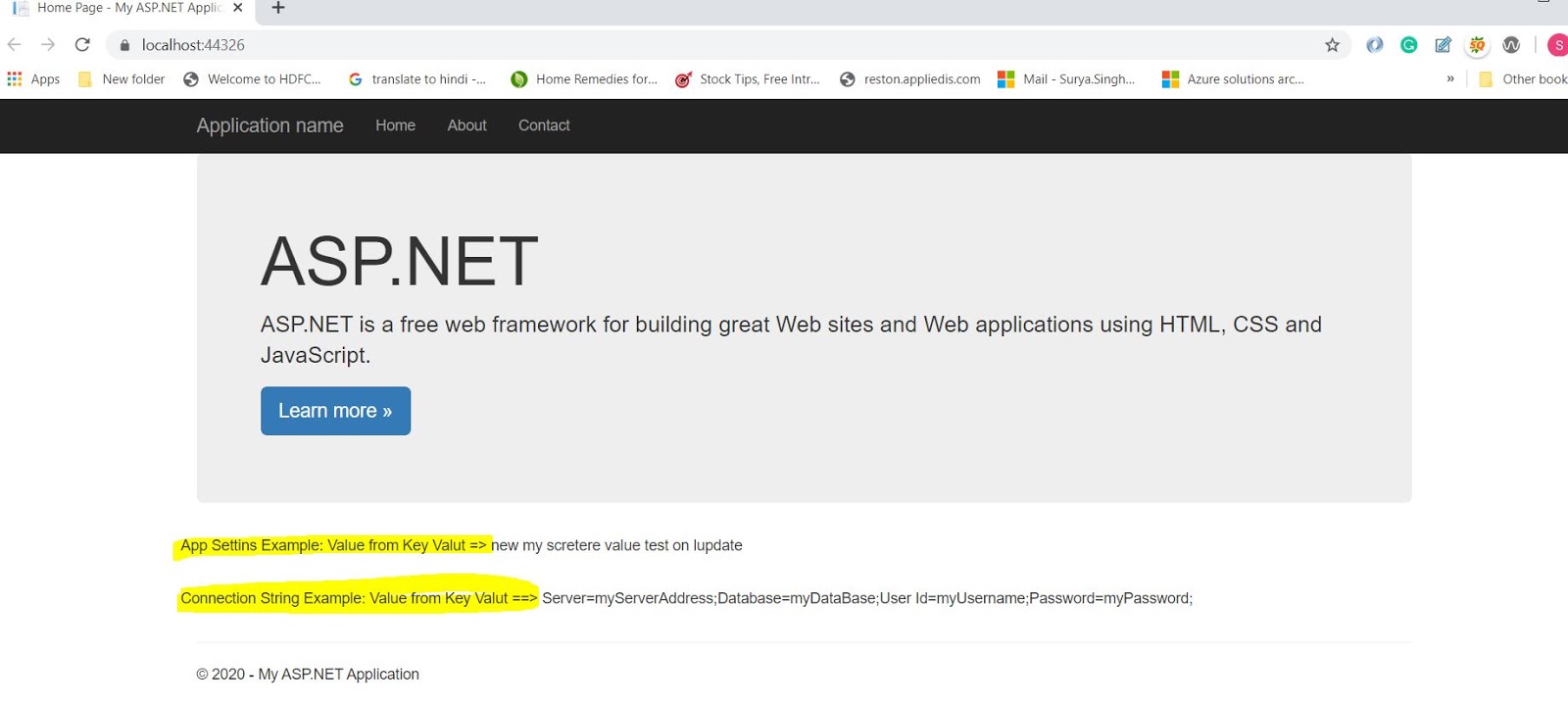
Let's run from your local machine and if your running given sample code(Download Sample Code from Git Hub) so you will see the following screen:

successfull-db-connection-running app.JPG


Please provide your comment and feedback, that'll be highly appreciated.

17 March, 2020

Azure key vault with .net framework 4.8


Azure Key Vault  With .Net Framework 4.8


I was asked to migrate asp.net MVC 5 web application to Azure and I were looking for the key vault integrations and access all the secrete out from there.

Azure Key Vault Config Builder


Configuration builders for ASP.NET are new in .NET Framework >=4.7.1 and .NET Core >=2.0 and allow for pulling settings from one or many sources. Config builders support a number of different sources like user secrets, environment variables and Azure Key Vault and also you can create your own config builder, to pull in configuration from your own configuration management system.

Here I am going to demo Key Vault integrations with Asp.net MVC(download .net framework 4.8). You will find that it's magical, without code, changes how your app can read secretes from the key vault. Just you have to do the few configurations in your web config file.

Prerequisite:
Following resource are required to run/complete this demo
·        Azure subscription
o   Create an Azure web app
o   Create a key vault resource
§  Add a couple of secretes
·        Visual studio 2019 ready to use on your machine
·        .Net Framework 4.8 installed

Configuration Details

I have ready code/running for you that you can download code from Git Hub

The NuGet package  “Microsoft.Configuration.ConfigurationBuilders.Azure” version 2.0.0. It will facilitate to access the give secretes from the azure key vault. when you will install this package it will install all the required other packages.


When you will install it will make the following changes in your web.config file. you need to update your key vault name here.

  <add name="AzureKeyVault"  vaultName="demo-dotnet47-kv
  • Above highlighted key vault name you need to replace with yours once.
if you want to render and read connection string to decore with

<connectionStrings configBuilders="AzureKeyVault">

if you want to render your app setting from key vault so decorate with same like connection sting you can see the highlighted in green color

You need to add the empty connection string and add secrete with the same name, see the highlighted items in orange color

web.config


Let's see the Key Vault and Secretes

If you are new to the azure key vault please visit this tutorial so learn around and provision steps

here is the one that we have used in this demo. 
If you are running the app from your local machine so make sure that you logged with the same principle(user Id) that you added under the azure key vault access policy otherwise your app will be unable to access the secretes

if you are running you this demo after publishing the azure web app, make sure that you have added Managed Identity on and you have granted access to it under key vault access policy.

in this demo we are trying access only below highlighted secretes from key vault no all because of the default config builder behavior mode="strict". if you want to read/add all the secrets then set up the mode = "Greedy"  in the above config file 

  <add name="AzureKeyVault" mode="Greedy" vaultName="demo-dotnet47-kv" 


azure key vault


Key Vault Access Policy Settings

key-vault-access-policy

Managed Identity setup for your web app:


web-app-manged-identity


Asp.net MVC 5 Code and Neuget Packages Details


once you will download this code from Git Hub, you will notice the following changes

NuGet Packages:
config-builder-nuget-packages.JPG


Code demo to read secretes:

read-secretes-value


Show these values on view: not best practices its a just for the demo and with demo secretes.


show-secretes-over-view.JPG


Finally, we have done with all the required changes so let's run the app and see the result.

A result from the local machine 

Before running this app lets do the last thing. Open Azure CLI(CMD) and run the command "az login" because managed Identity use azure CLI to get generate token to connect with Azure resources.


AzureKeyVaultConfigBuilder demo local

Let's have demo app running over the azure

azure-app-demo.JPG

13 March, 2020

Azure Traffic Manager vs Azure Front Door


Azure Front Door

Applications need to improve performance, scale their application, enable instant failover, or enable complex application architectures like IaaS and PaaS, on-prem + cloud, or multi-cloud hybrid experiences.  Adding AFD in front of your application or API  you will fill improvements and optimizations at the edge such as TCP Fast Open, WAN optimizations, and improvements to SSL such as SSL session resumption.

AFD is a scalable and secure entry point for the fast delivery of your global applications. AFD is your one-stop solution for your global website/application and provides the following feature:

  • AFD built on world-class Microsoft Global Network infrastructure. Always keep your traffic on the best path to your app, improve your service scale, reduce latency and increase throughput for your global users with edge load balancing and application acceleration.
  • SSL offload and application acceleration at the edge close to end-users
  • Global HTTP load balancing with instant failover
  • Actionable insights about your users and back ends
  • Web Application Firewall (WAF) and DDoS Protection
  • The central control plane for traffic orchestration

Most Popular AFD Features:

  • Globally distributed microservice applications
  • Dynamic applications with global reach
  • Global, real-time performance and availability for your app or API
  • Scale up your global application
  • Protect your app from attacks
  • Centralized traffic orchestration view
Azure Front Door Example Diagram
Credit: https://azure.microsoft.com/

Azure Traffic Manager 

Domain Name System(DNS)-based traffic load balancer that enables to distribute traffic optimally to services across global Azure regions while providing high availability and responsiveness.
Traffic Manager uses DNS to direct client requests to the most appropriate service endpoint based on a traffic-routing method and the health of the endpoints. Followings are the most popular feature:

  • Increase application availability
  • Improve application performance
  • Perform service maintenance without downtime
  • Combine hybrid applications
  • Distribute traffic for complex deployments 

Traffic-routing method


  • Priority: Best to use when you need to use a primary service endpoint for all traffic, and provide backups in case the primary or the backup endpoints are unavailable.
  • Weighted: Best to use when you need to distribute traffic across a set of endpoints, either evenly or according to weights, which you define.
  • Performance: Best to use when you need to have endpoints in different geographic locations and you want end users to use the "closest" endpoint in terms of the lowest network latency.
  • Geographic:  user's shall be directed to specific endpoints (Azure, External, or Nested) based on which geographic location their DNS query originates from. Examples include complying with data sovereignty mandates, localization of content & user experience and measuring traffic from different regions.
  • Multivalue: Select MultiValue for Traffic Manager profiles that can only have IPv4/IPv6 addresses as endpoints. When a query is received for this profile, all healthy endpoints are returned.
  • Subnet: Select Subnet traffic-routing method to map sets of end-user IP address ranges to a specific endpoint within a Traffic Manager profile. When a request is received, the endpoint returned will be the one mapped for that request’s source IP address.
Azure Traffic Manager
Credit: https://docs.microsoft.com


04 February, 2020

Azure Active Directory- Restrict Application Access To Users or A Group

Azure Active Directory- Restrict Application Access To Users or A Group

This article will show, how you can restrict your app for the give users/group only. Once you are done with app registrations then you can use the Enterprises Application sections to provision access to allowed users only or users existing under the group.

Azure Ad Group

Azure Active Directory offers a mechanism to use groups to manage access to cloud-based web apps, on-premises apps, and other resources. For example Software as a Service (SaaS) apps, Azure services, SharePoint sites, and on-premises resources.

See this Angular 8 App With Azure Active Directory Authentication post for the step by step registrations flow if you are not aware.

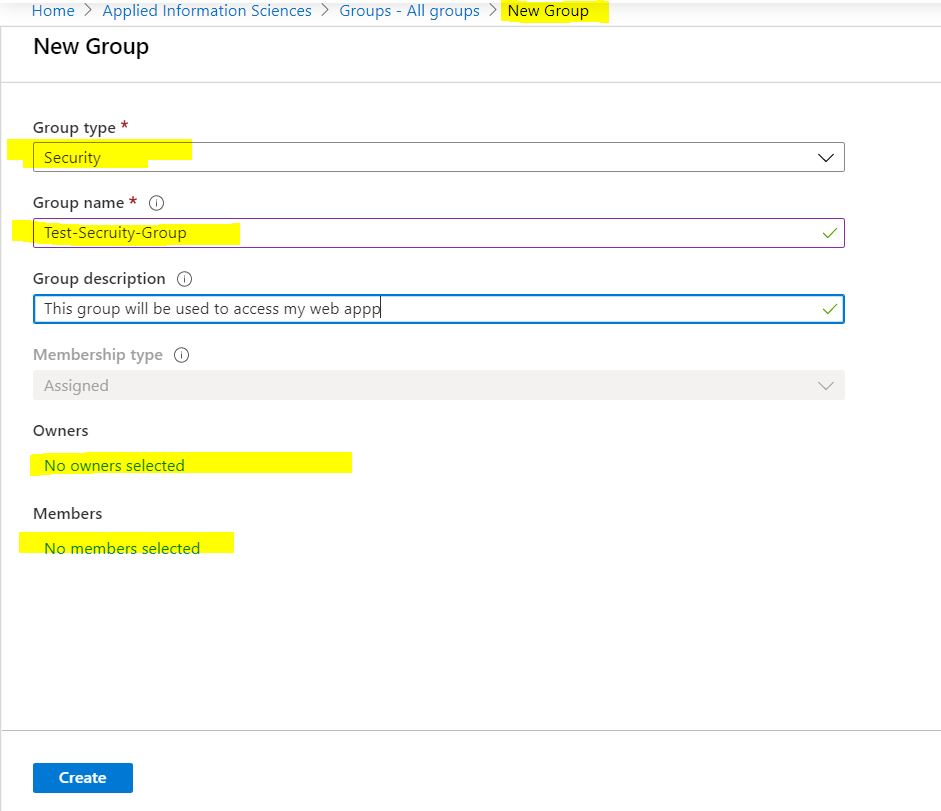
Create an Azure Ad Group (Security):

  1. Log in to the Azure portal with an administrator account if you are not admin then take help from your concern admin team. (mostly normal user can not create the group)
  2. Click on the All services item on the main menu or Find Azure Active Directory in the left panel.
  3. Choose the directory you are using for the application.
  4. Choose Groups >> New Group
  5. Choose the Group Type to Security
  6. Provide a meaning full group name
  7. Add users under the member's sections that you are going to allow to access your application
  8. Click on Create button 
Create Azure Ad Security Group

How to Configure the Application?

Follow the following steps to configure your app:
  1. Log in to the Azure portal with your account(an administrator account will be required but you can take help from your Cloud Admin/DevOps Team) or as an owner of the app under Enterprise apps.
  2. Click on the All services item on the main menu or Find Azure Active Directory in the left panel.
  3. Choose the directory you are using for the application.
  4. Click on the Enterprise applications tab.
  5. Select your application from the list of applications associated with this directory.
  6. Click the Properties tab.
  7. Change the User assignment required? toggle to Yes.
  8. Click the Save button at the top of the screen.
user-assignment-required


Assign Group to App


  1. To assign group(s) to an application directly, follow the steps below:
  2. Open the Azure portal and sign in as a Global Administrator or as a non-admin application owner with an Azure AD Premium license assigned is required
  3. Select  “Azure Active Directory”  in Left Panel to open.
  4. Click Enterprise Applications from the Azure Active Directory left-hand navigation menu.
  5. Click All Applications to view a list of all your applications and filter  with your app name
  6. Select the application you want to assign a user to from the list.
  7. Click Users and Groups from the application’s left-hand navigation menu.
  8. Click the Add button on top of the Users and Groups list to open(filter your group name) the Add Assignment pane.
  9. Click the Users and groups selector from the Add Assignment pane.


Group assignment


Grant tenant-wide admin consent to an application :

Admin consent will be required because the application will be reading the user profile on behalf of the user. Only Global admin can grant the admin consent.
Visit MSDN for more information around the Admin consent.

17 January, 2020

Angular 8 Azure Active Directory Authentication

Angular 8 App With Azure Active Directory Authentication


Today we are going to use the Active Directory Authentication Library (ADAL) for angular 8/JavaScript (ADAL.JS) that offers Azure AD authentication services that can be incorporated in the single-page applications(SPA).

if you are new to Angular 8 so ahead have a look into the first angular 8 projects and then go through the step by steps and instructions to implement authentication.

Step 1: Configuring Azure Active Directory (App Registrations)

  • Login to Azure Portal
  • Click on Azure Active Directory >> App Registrations >> New Registrations
  • Enter the display name
  • Select the supported account type(in my case Single Tenant App)
  • Enter the Redirect URI( default URL for the angular https://localhost:4200/)
  • Click on Register button

AAD-App registrations

  • Find newly created app under app registrations "angular-app-web-dev" and click on Authentication in left panel >> under Implicit grant >>  ID tokens tick the checkbox >> click on the Save Button
AAD App Registration - Authentication Settings


Get the following details from registered App that can be found under Overview sections
  • Client Id - (GUID)
  • Tenant Id - (GUID)
AAD - ClientId and TenantId


Step 2 - Angular Project Updates for ADAL

Open the angular app in vscode and open the terminal  

Install the microsoft-adal-angular6 npm package

Run the following command to install ADAL package and this package will be added to your dependencies section in package.json:

 npm i microsoft-adal-angular6 --save

Update environment.ts file with the following details

Just the end of step -1 we got the tenant id and client Id
    
    tenantId: 'c71b45bc-73d9-4208-95bb-1f5b7dd22cbf',  // replace with yours one here
    clientId: '73d9-4208-95bb-49cd-c71b45bc-73d9-4208', // replace with yours one here
    redirectUri: 'https://localhost:4200', // replace with the yours one here
    postLogoutRedirectUri: 'https://localhost:4200/logout', // replace with yours one here
    extraQueryParameter: 'nux=1' //(optional)
environment.ts

Update app-routing.module.ts  to secure individual route (your route modules)

Import the AuthenticationGuard  into your file

import { AuthenticationGuard } from 'microsoft-adal-angular6';

const routes: Routes = [
  { path: '', component: EmployeeComponent, canActivate: [AuthenticationGuard] } }
];

Update app.module.ts time with followings

Import the MsAdalAngular6Module, AuthenticationGuard into your file

import { MsAdalAngular6Module, AuthenticationGuard } from 'microsoft-adal-angular6';

add imports with the following configuration details

imports: [
    MsAdalAngular6Module.forRoot({
      tenant: environment.tenantId,
      clientId: environment.clientId,
      redirectUri: window.location.origin,
      // endpoints: environment.endpoints,
      navigateToLoginRequestUrl: false,
      extraQueryParameter: environment.extraQueryParameter,
      cacheLocation: 'sessionStorage'
    })
  ],

and also update the providers for the authentication gurad
  providers: [ 
    AuthenticationGuard
  ],

Display the Logged-in User Details

if you want to show the logged-in user details use the these properties


App-component.ts


this.adalSvc.LoggedInUserEmail // Get the Logged In User Email
this.adalSvc.LoggedInUserName // Get the Logged In User Name
this.adalSvc.logout() // Logs out the signed in user

You have done all the possible required steps, You do not have to call the login method it will be called implicitly.

09 January, 2020

Powershell Add Tags To Resources

Powershell Add Tags To Resources

We'll be using  Powershell 7 Preview  that has AZ module to TAG resources
also,  good to read the following article over MSDN Installing PowerShell Core on Windows


 Powershell 7 Preview
 Powershell 7 Preview 
Azure PowerShell Az module
Az offers shorter commands, improved stability, and cross-platform support. Az also has feature equality with AzureRM, which provides a smooth migration path. Windows and PowerShell Core 6.x and later on all supported platforms - including Windows, macOS, and Linux. 

Azure Tag All Resources in a Resource Group

Use the following script to read existing tags for the resource group and apply it to all its resources.

  • It will keep existing tags on resources that aren't duplicates
  • If Resource Tag Key has empty value  then it will replace it with resource group's same Tag key value if exists

# get resource group object
$group = Get-AzResourceGroup -Name TargetedResourceGroupName

#check if group have tags
if ($null -ne $group.Tags) {

    #get all resources from group
    $resources = Get-AzResource -ResourceGroupName $group.ResourceGroupName
  
    foreach ($r in $resources)
    {
       $resourcetags = (Get-AzResource -ResourceId $r.ResourceId).Tags
       # print resource name
        write-host $r.Name
       # print new line
        write-host

        if ($resourcetags)
        {
            foreach ($key in $group.Tags.Keys)
            {
                if (-not($resourcetags.ContainsKey($key)))
                {
                    $resourcetags.Add($key, $group.Tags[$key])
                }
               
                if(!$resourcetags[$key])
                {
                    $resourcetags[$key]=$group.Tags[$key]                   
                }
            }
           # write-host $resourcetags
            Set-AzResource -Tag $resourcetags -ResourceId $r.ResourceId -Force
        }
        else
        {
           Set-AzResource -Tag $group.Tags -ResourceId $r.ResourceId -Force
        }
    }
}