28 July, 2020

React Native Expo Save File to Device in Given Folder

React Native Expo: Save File to Device in Given Folder

Currently, there is no easy solution and feature or trick or tutorial how to write files on internal storage and that is very tedious work to save find on the given provided folder and  app directory with expo without detaching

I want to save files on internal storage like Downloads, WhatsApp, DCIM, Pictures

This feature useful for the app with download files/picture/music feature. 

In this working tutorial, we are going to download video files from the server and the same file will be moved to the desire device folder.

Here are steps that you need to do,  This is working code in ANDROID and that should work on iOs as well.

You need to install following expo packages expo-media-library, expo-permissions and expo-file-system

  • Permissions.CAMERA_ROLL Permission is required, that should be fine.
  • Using FileSystem to download video, it will provide local URI from device
  • After call saveFile method to move the file to the desired folder.


import * as MediaLibrary from 'expo-media-library';

import * as Permissions from 'expo-permissions';

 import * as FileSystem from 'expo-file-system';

const saveFile = async (fileUri=> {

  const { status } = await Permissions.askAsync(Permissions.CAMERA_ROLL);

  if (status === 'granted') {

    const asset = await MediaLibrary.createAssetAsync(fileUri);

    await MediaLibrary.createAlbumAsync('<FOLDER NAME>'assetfalse);

  }

};

 const fileDownLoad = async () => {

    let lastIndex = media?.uri.lastIndexOf('/');

    let fileName = media?.uri.substring(lastIndex);


    let downloadResumable = FileSystem.createDownloadResumable(

      "http://d23dyxeqlo5psv.cloudfront.net/big_buck_bunny.mp4",

      FileSystem.documentDirectory + fileName,

      {},

      () => {

        // down progress monitor here

      }

    );

    try {

      const { uri } = await downloadResumable.downloadAsync().then((item=> {

        return item;

      });


      await saveFile(uri)

        .then((rs=> {

          alert('Video saved to download folder);

        });

    } catch (e) {

      console.error(e);

    }

  };


23 May, 2020

Node.js is Dead – Long live Deno- deno vs node

Node.js is Dead – Long live Deno

Deno is a new runtime for JavaScript and TypeScript, invented by Ryan Dahl - the original author/creator of Node.js. The persistence of this project to fix design problems in Node.js described in Dahl's famous talk "10 Things I Regret About Node.js".  Here I am providing depth differences between Node.js and Deno. 

Differences between Node.js and Deno

Deno Node.Js
Deno does not use npm
It uses modules referenced as URLs or file paths
Use npm
Deno does not use package.json Node use package.json for dependency and module management
All async actions in Deno return a promise  The async_hooks module provides an API to track asynchronous resources.
Deno requires explicit permissions for the file, network, and environment access Node.js does not required any explicit permissions to access network files. It has all default permissions.
Deno always dies on uncaught errors  Node.js follows a callback pattern where an error object is the first argument and data is the second argument.
Uses "ES Modules" and does not support require()Uses "ES Modules" and does not support require()
import * as the log from "https://deno.land/std/log/mod.ts"
Node.js use required() method to import libraries 
Modules/files loaded from remote URLs are intended to be immutable and cacheable  All the module(npm-modules) reside under your work repository
Visit 4cb.online and for hands-on with Hello-world Deno App

14 May, 2020

Angular 9 with Docker Step by Step example

Angular 9 with Docker Step by Step example


I had the plan to learn docker and use an angular app running under the docker environment. I was struggling to get the right and simple steps to start with. So I invested almost 2 days to learn basic docker and working with angular 9 and finally I was able to make it. Congrats to me!! 😊

Setting up the local environment and workspace

Prerequisites:

Angular Project Setup :

After installing the above tools open you CMD/Angular CLI 

installed Angular: If you are new to an angular good visit here learn and step  https://angular.io/guide/setup-local

Step 1: Install the Angular CLI

               npm install -g @angular/cli

Step 2: Create Hello World application

ng new hello-world

Step 3: Run the application

cd my-app

ng serve --open

 or Open your working folder(hello-world) in vs code and run ng serve --open

Great you are down with your angular project and your application is running now you can verify visiting over http://localhost:4200/ 

Docker Setup for your Hello-World Applications

 What is Docker?

·        Docker is a set of platforms as a service products,

·        Uses OS-level virtualization to deliver software in packages called containers.

·        Developed by: Docker, Inc.

·        and Written in: Go,

·        Initial release date: 20 March 2013

What can I use Docker for?

·        Fast, consistent delivery of your applications

·        Responsive deployment and scaling

·        Running more workloads on the same hardware

 you are new to Docker, then visiting the following docker official website https://www.docker.com/ to learn

Visuals Studio Code Setup:

Got VS Code >> Extensions >> Search “Docker” >> install one from Microsoft only

visual-studio-code-docker-extension

Step 4: under your project root directory create a file named DockerFile (Without any Extensions), you can also create docker file with help VS CODE Command Palette...

Step 5: paste the following code to your DockerFile:

        Get a docker file code and details from here: http://4cb.online/blogs/Angular-app-with-Docker-Step-by-Step-exampleile data from here:  

Note*: If you are facing any issue related to Nginx Just install with the following command

Npm install nginx

What is nginx?

NGINX is open-source software and provides a mechanism for web serving, reverse proxying, caching, load balancing, media streaming, etc. It started out as a web server designed for maximum performance and stability. In addition to its HTTP server capabilities, and load balancer for HTTP, TCP, and UDP servers.

Step 6: Build Image with VS Code

               Open your docker file created in Step 5

               Right Click(mouse) >> Build Image...

               Select your latest project:   "hellodocker:latest"

Step 7: RUN your image with the following command in terminal

               docker run --rm -it  -p 80:80/tcp hellodocker:latest

               or

               got to your image >> right click>> RUN


docker-run-vscode


You have done with your first docker app, by default it is running on port:80, http://localhost/

Finally, here we go with the angular running app

Push to Docker Hub 

As you know docker runs on images(can be called out stopped Containers), you push your hello-world image to docker hub for your future use or next-level learning.

·        Go to https://hub.docker.com/

·        Create your account

·        Note down your docker ID that will be used to push your images

·        To push your hello-world image

·        Open vs code >> right click on image>>push

·        It will ask for docker ID and password first provide it 

And all done 😊


docker hub


08 April, 2020

.Net Framework 4.8: Azure SQL Database connection from App Service using a managed identity


Azure SQL Database connection from App Service using a managed identity


Azure App Service(Web App) provides a highly scalable, self-patching web hosting accommodation in azure.  It offers a managed identity for your app, which is a turn-key solution for securing access to the Azure SQL database and other azure services.  Managed identities in-app provides a mechanism to your app more secure by eliminating secrets from your app, such as credentials in the connection strings.  

Here we'll integrate managed identity to the sample web app and also with zero lines of code. we'll utilize full configuration capability to make a connection to the Azure SQL database.

Prerequisites:

Following resource are required to run/complete this demo

  • Azure subscription
    • Create an Azure web app
    • Create a key vault resource
  • Visual studio 2019 ready to use on your machine
  • .Net Framework 4.8 installed

You will learn followings:

  • Enable managed identities
  • Grant SQL Database access to the managed identity
  • Connect to SQL Database from Visual Studio using Azure AD authentication

Azure Database Setup

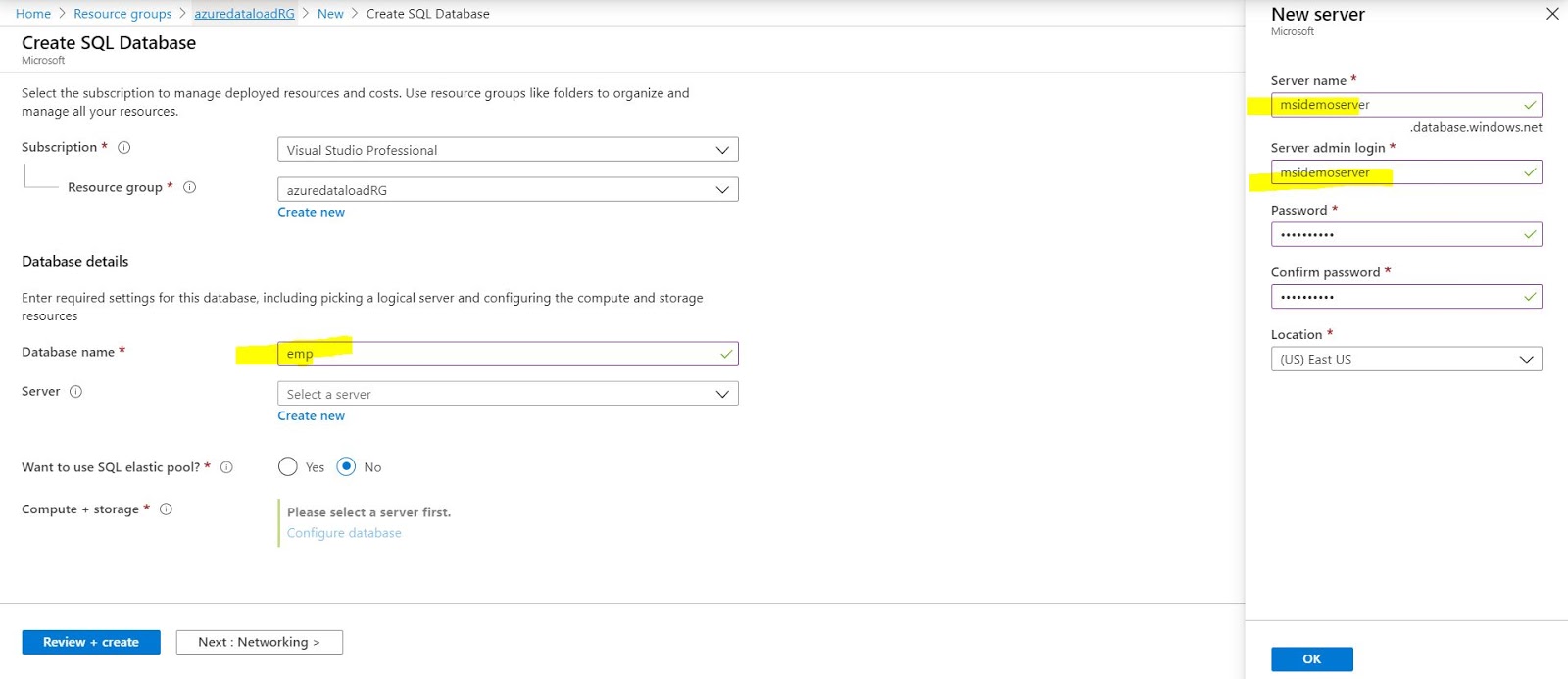
Let's create a database for you according to give screenshot

azure-sql-database-create

Setup Azure Active Directory

Open you newly create azure SQL server and add your email id(that you have used to login to azure portal)

aad-admin-setup

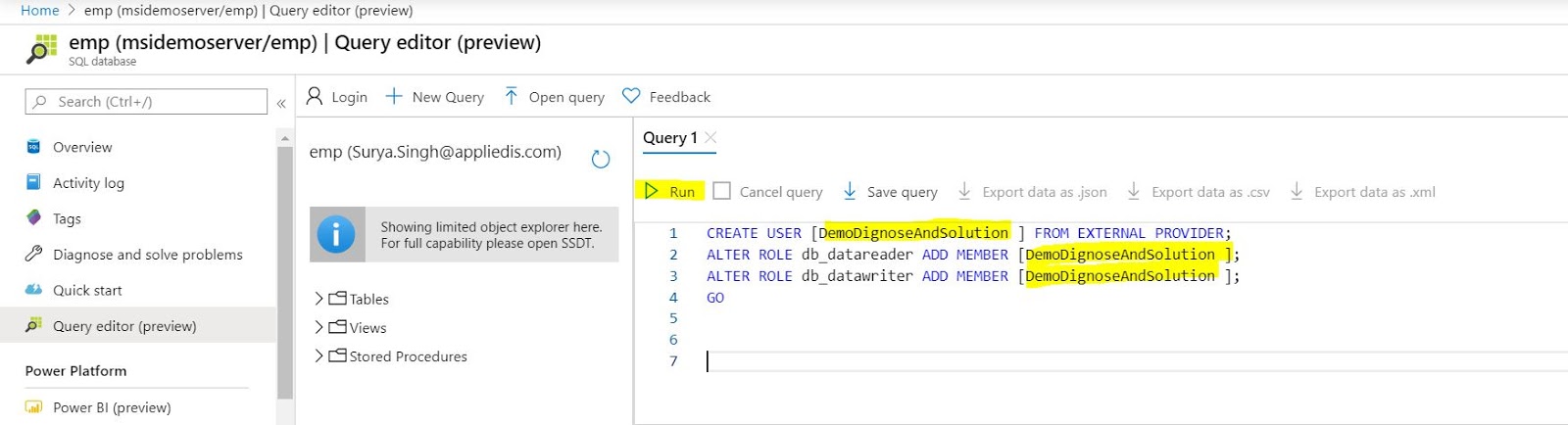
Open Azure Database(for example: emp) and click on Query Editor(Preview) on and log-in with the option “Active Directory authentication” and run following command

login-as-aad


Grant Access to your Web App to Azure SQL Database

This step is not required for the local running the app in visual studio

CREATE USER [<identity-name>] FROM EXTERNAL PROVIDER;
ALTER ROLE db_datareader ADD MEMBER [<identity-name>];
ALTER ROLE db_datawriter ADD MEMBER [<identity-name>];
ALTER ROLE db_ddladmin ADD MEMBER [<identity-name>];
GO

[<identity-name>] : Your web app Identity that will be required only when your code hosted over underlying web app to make the connection between an azure web app and your emp database.

execute-query


Set up Local Develop Environment(Visual Studio)

You must be login into the visual studio with same principle/user name that you have used to access https://portal.azure.com/

  • To enable development and debugging in Visual Studio, add your Azure AD user in Visual Studio by selecting File > Account Settings from the menu, and click Add an account.
  • Add  latest Nuget Package “Microsoft.Azure.Services.AppAuthentication” to your underlying project
  • Open your Web.config,  file and the following configurations

  <configSections>
    <section name="SqlAuthenticationProviders" type="System.Data.SqlClient.SqlAuthenticationProviderConfigurationSection, System.Data, Version=4.0.0.0, Culture=neutral, PublicKeyToken=b77a5c561934e089" />
  </configSections>
  <SqlAuthenticationProviders>
    <providers>
      <add name="Active Directory Interactive" type="Microsoft.Azure.Services.AppAuthentication.SqlAppAuthenticationProvider, Microsoft.Azure.Services.AppAuthentication" />
    </providers>
  </SqlAuthenticationProviders>
  <connectionStrings>
    <add name="BasicDatabaseConnectionString" connectionString="server=msidemoserver.database.windows.net;database=emp;UID=ManagedIdentity;Authentication=Active Directory Interactive" />
  </connectionStrings>

Note: update the connection string  with your Azure SQL server name and database

Sample web.config file: 
web-config-file-changes

You're now ready to develop and debug your app with the SQL Database as the back end, using Azure AD authentication.


Let's run from your local machine and if your running given sample code(Download Sample Code from Git Hub) so you will see the following screen:

successfull-db-connection-running app.JPG


Please provide your comment and feedback, that'll be highly appreciated.